How to Take a Screenshot on an HP Laptop (Windows and ChromeOS)
Every way to capture your screen on an HP laptop, from the Print Screen key to the Snipping Tool, plus fixes when PrtSc does nothing.
The short answer
On an HP laptop running Windows 10 or Windows 11, the fastest method depends on what you want to end up with:
- Whole screen, ready to paste: press PrtSc (sometimes labelled PrtScn or PrtSc SysRq). Nothing appears to happen — the image is on the clipboard, so open Paint, Word, an email or a chat window and press Ctrl + V.
- Whole screen, saved as a file: press Windows key + PrtSc. The screen dims for a moment and the picture lands in your Pictures folder.
- One area or one window: press Windows key + Shift + S, drag around what you want, then save or paste it from the Snipping Tool.
HP Chromebooks have no Print Screen key at all — those are covered further down.
What you need before you start
Nothing here needs extra software; every method below is built into Windows or ChromeOS. Check three things first:
- Which version of Windows you have. Press Windows key + R, type
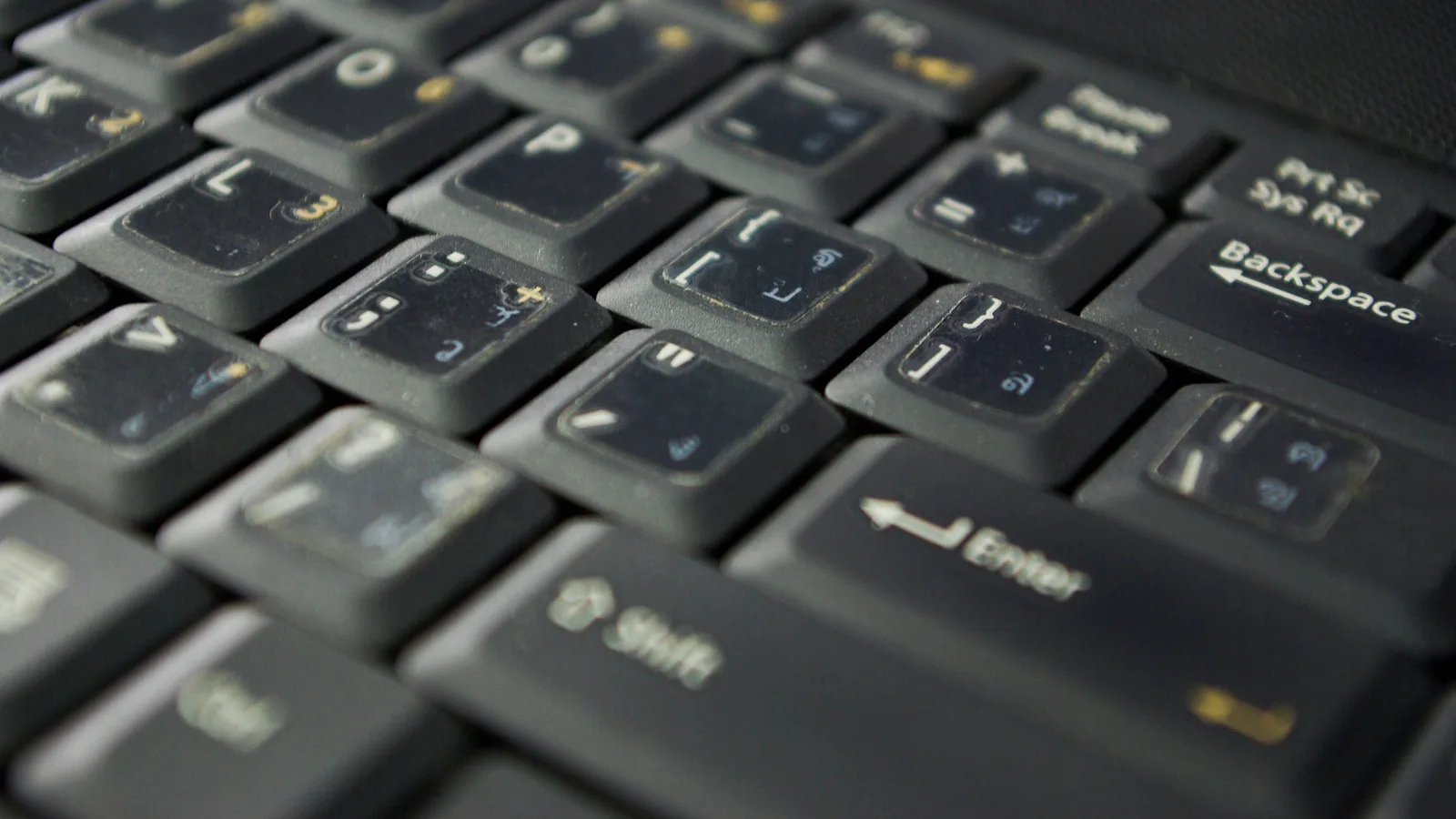
winverand press Enter. Windows 11 routes screen capture through the Snipping Tool; Windows 10 uses Snip & Sketch or the older Snipping Tool. The keyboard shortcuts are the same on both. - Where your PrtSc key is. It is usually the last key in the top row, next to F12, but on 13- and 14-inch HP laptops it often shares a key or is printed in a smaller font that needs the Fn key held at the same time.
- Whether you are allowed to capture the content. Streaming services and some banking apps blank out protected video, and a work-managed laptop can block screen capture entirely. More on both below.
Find the Print Screen key on your HP keyboard
HP layouts vary more than most, so spend ten seconds locating the right key:
- Full-size and 15.6-inch HP laptops: a dedicated PrtSc key at the far right of the top row, normally next to F12.
- Compact HP models: the same function is often printed on the Insert key or another shared key, which means you press Fn + that key.
- Fn lock: on many HP laptops, Fn + Esc toggles Fn lock, and the Fn key carries a small indicator light. If PrtSc suddenly starts working without Fn — or stops — that toggle is usually the reason.
- HP Chromebooks: no PrtSc key. The capture key sits where F5 would be and shows a rectangle icon.
Take a full-screen screenshot with PrtSc
Set up the screen
Open the page, document or app you want to capture and close anything private, because the entire display is included — every monitor, if you have more than one connected.
Press PrtSc once
Press PrtSc, or Fn + PrtSc if your model needs the modifier. On most HP laptops there is no shutter sound, flash or notification. That is normal: the image has gone to the clipboard.
Paste it into an app
Open Paint, Word, an email or a chat window and press Ctrl + V. In Paint, use File > Save as to keep a PNG or JPEG copy somewhere you will find it again.
Check the capture worked
If the paste comes out empty, the keypress did not register. Try Fn + PrtSc, or fall back to Windows key + Shift + S.
Save a screenshot straight to a file
Hold the Windows key and press PrtSc
The screen dims briefly and then brightens again. That flicker is the only confirmation you get.
Open File Explorer
The image is saved automatically as a PNG in Pictures > Screenshots. If OneDrive backup is switched on, look for Pictures > Screenshots inside your OneDrive folder instead.
Rename the file
Files arrive named Screenshot (1).png, Screenshot (2).png and so on. Rename it straight away if you will need to find it later.
Capture only the active window
This is the tidiest option when you want one window without the desktop, taskbar or second monitor behind it.
Click the window you want
The window must be the active one — the one whose title bar is highlighted.
Press Alt + PrtSc
Use Fn + Alt + PrtSc if your keyboard needs the modifier. Only that window is copied.
Paste and save
Press Ctrl + V in Paint, Word or an email. The paste includes the window border and, on most apps, the title bar.
Capture an area with the Snipping Tool
Press Windows key + Shift + S
The screen dims and a small toolbar appears at the top. Everything else on screen freezes for the capture.
Choose a mode
Pick rectangular, freeform, window or full screen from the toolbar. Rectangular suits most jobs; window mode snaps to a single app.
Draw around what you want
Drag a box, or click a window in window mode. The snip is copied to the clipboard and opens in the Snipping Tool window.
Annotate and save
Use the pen and highlighter if you need to point something out, then press Ctrl + S or the save icon and choose a location. In Windows 11 you can also switch auto-save on so every snip is filed for you.
Make the Print Screen key open the Snipping Tool
If you take cut-out screenshots more often than full-screen ones, you can repurpose the key rather than remembering two shortcuts.
- Windows 11: go to Settings > Accessibility > Keyboard and switch on the option that makes the Print Screen key open screen capture.
- Windows 10: the same toggle lives under Settings > Ease of Access > Keyboard.
Once it is on, a single tap of PrtSc brings up the snipping bar instead of copying the whole screen.
Screenshots on an HP Chromebook
ChromeOS does not use any of the Windows shortcuts. The capture key sits in the top row where F5 would be and shows a rectangle with two lines.
Full screen: Ctrl + Show windows key
The whole display is captured and a notification appears; the file is saved in your Downloads folder and copied to the clipboard.
Part of the screen: Ctrl + Shift + Show windows key
The pointer turns into a crosshair. Drag around the area you want, and the file is saved in Downloads.
Or use the built-in capture tool
Open the screen capture tool from the shelf or Quick Settings for more options, including window capture, timed capture and screen recording.
Which method should you use?
| Method | Keys | What it captures | Where it goes |
|---|---|---|---|
| Full screen, to paste | PrtSc | Everything on the display, all monitors combined | Clipboard — paste with Ctrl + V |
| Full screen, as a file | Windows key + PrtSc | Everything on the display | Pictures > Screenshots |
| Active window only | Alt + PrtSc | The window you last clicked | Clipboard |
| Area, window or full screen | Windows key + Shift + S | Whatever you select | Snipping Tool and clipboard |
| A game in full screen | Windows key + Alt + PrtSc | The game window in focus | Videos > Captures |
| HP Chromebook, full screen | Ctrl + Show windows key | The whole display | Downloads |
What commonly goes wrong
- Nothing seems to happen when you press PrtSc. Expected. The key is silent on most HP laptops; the image waits on the clipboard until you paste.
- The paste comes out blank. The keypress did not register. Try Fn + PrtSc, then test the key itself using the on-screen keyboard (Windows key + Ctrl + O) to see whether it is a hardware problem or a shortcut problem.
- Windows key + PrtSc saves nothing. Check that the Screenshots folder has not been redirected to OneDrive or another drive, and that there is free disk space.
- The screenshot is completely black. Protected video from streaming services, and some banking and DRM apps, refuse to be captured. Take the window out of full screen, or use the app's own share or download option where it has one.
- The Snipping Tool will not open. Search for it in the Start menu; if it is missing, install or repair it from the Microsoft Store. On a work laptop it may be switched off by your IT department.
- You get more than you bargained for. PrtSc captures every connected monitor as one wide image. Disconnect the second screen or use window mode if that is not what you want.
Getting it right and staying safe
Two habits make all of this quicker. First, decide once which shortcut you will use for each job and stick to it: PrtSc for a quick paste into a chat, Windows key + Shift + S for anything you will keep. Second, paste or save immediately — the clipboard holds one image at a time, and a single extra copy wipes the screenshot you just took.
Frequently asked questions
Why does nothing happen when I press PrtSc on my HP laptop?
Most HP laptops copy the screen silently, with no sound, flash or on-screen message. The capture only becomes visible when you paste it into an app with Ctrl + V. If the paste is empty, hold Fn while pressing the key.
Can I take a screenshot without a Print Screen key?
Yes. Windows key + Shift + S opens the snipping bar on any Windows 10 or 11 machine, and the Snipping Tool can also be launched from the Start menu. Neither depends on the PrtSc key existing.
How do I capture a menu that closes as soon as I click?
Open the Snipping Tool, set its delay timer to three, five or ten seconds, press New, then open the menu during the countdown. The screen is captured when the timer runs out, with the menu still visible.
Can I take a screenshot while playing a game in full screen?
Yes, using the Xbox Game Bar shortcut Windows key + Alt + PrtSc, which saves an image of the game in focus to Videos > Captures. Press Windows key + G to open the Game Bar if you want more capture options.
Do HP Chromebooks use the same shortcuts?
No. ChromeOS uses Ctrl + the Show windows key for a full-screen capture and Ctrl + Shift + Show windows key for a dragged area. Files are saved in the Downloads folder.