How to clean a laptop screen without damaging it
Learn how to clean a laptop screen safely: what to use, what to avoid, and a step-by-step method for dust, smudges and greasy fingerprints.
The short answer
Most laptop screens are not plain glass. They carry an anti-glare finish, an anti-fingerprint coating or a thin polarising film, and those layers are what harsh cleaners and rough cloths damage. The safe method is simple: switch the laptop off and unplug it, lift loose dust with a dry microfibre cloth, then wipe marks with a second microfibre cloth that is barely damp with distilled or filtered water. Finish with a dry buff.
That routine handles dust, fingerprints and light grease on glossy and matte panels alike. Anything stronger is only worth considering if your laptop maker's own cleaning guidance allows it.
What you need before you start
- Two microfibre cloths:
- One dry for dust, one for the damp pass. Wash them without fabric conditioner, which leaves a greasy film behind.
- Distilled or filtered water:
- Tap water can leave mineral marks, particularly in hard-water areas. A couple of drops is plenty.
- Screen cleaner (optional):
- Only if the laptop maker's guidance permits it, and only ever applied to the cloth.
- Soft brush or air blower:
- For dust around the bezel and hinge, never for scrubbing the panel itself.
- A desk lamp:
- Angled light shows up dust and smears that you would otherwise push around the screen.
Before you touch the screen
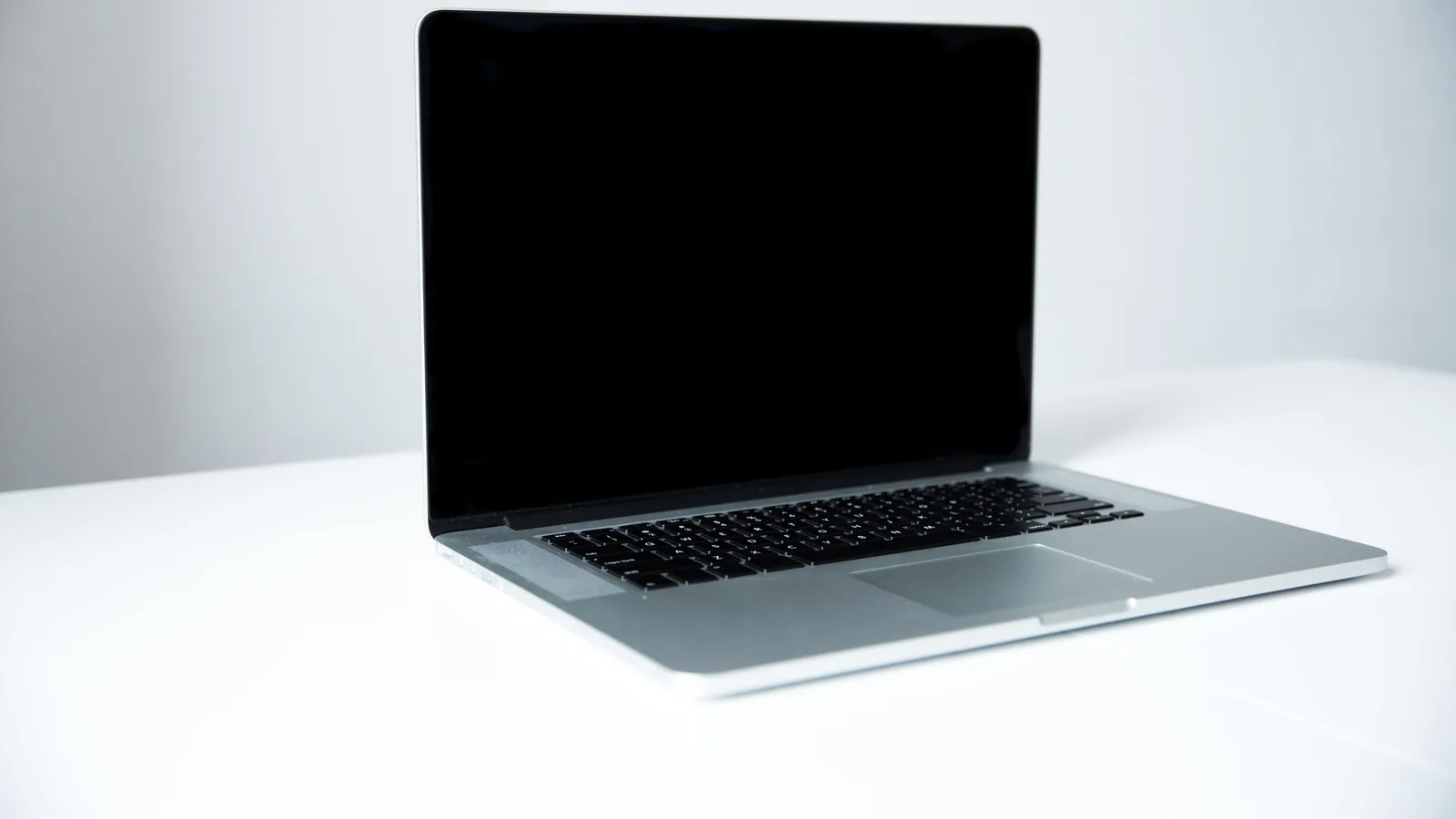
Shut the laptop down properly rather than leaving it asleep, then unplug the charger. A black screen makes dust and smears far easier to see, and there is no risk of your hand registering a touch while you work. Let the panel cool for a few minutes: cleaning a warm screen dries the moisture too quickly and leaves streaks.
Wash your hands first. Oily fingers are usually the reason a screen needs cleaning in the first place, and you do not want to transfer that grease straight back onto the glass.
Cleaning the screen, step by step
Power down and unplug
Shut down fully, unplug the charger and give the panel a minute to cool. Work in decent light so you can see what you are lifting off.
Dust with a dry microfibre cloth
Sweep lightly from the top of the screen downwards, using a folded section of the cloth. Do not press: dust is abrasive and pressure is what turns a speck into a scratch.
Check for grit before you wipe
Hold the screen up to the light and look at the cloth. Shake out or swap the cloth if it has picked up crumbs or grit, because a trapped grain acts like sandpaper under a damp wipe.
Dampen the second cloth, not the screen
Put a couple of drops of distilled water on the cloth, away from the laptop, and wring it until it is barely damp. It should feel cool, not wet, and must never drip.
Wipe in one direction with very little pressure
Work from top to bottom in overlapping strokes, using a fresh part of the cloth as it picks up grease. Let the cloth lift the mark rather than scrubbing at it in circles.
Buff dry and leave the lid open
Go over the panel with the dry cloth to remove any haze, then leave the laptop open for a few minutes so any remaining moisture can evaporate before you close it.
Wash the cloths afterwards
Hand wash in warm water without fabric conditioner and let them air-dry. A cloth that has been sitting in a bag is just moving old grease back onto the screen.
Stubborn marks, fingerprints and grease
Greasy fingerprints usually come off with a barely damp cloth followed by a dry buff. If a mark survives that, work in small sections and turn the cloth to a clean face for each pass, so you are lifting grease rather than spreading it.
If you decide to use a cleaner, choose one sold for laptop and monitor panels and check the manufacturer's guidance first. Apply it to the cloth, not the screen, and use less than you think you need. Rubbing harder is never the answer: firm pressure can leave pressure marks, clouding or permanent discolouration that no amount of cleaning will remove.
Safer choices versus risky ones
| What you are using | Safer approach | Risky approach |
|---|---|---|
| Liquid | Distilled or filtered water, applied to the cloth | Tap water or cleaner sprayed straight onto the panel |
| Cloth | Clean, soft microfibre | Kitchen roll, tissues, paper towels or sponges |
| Chemicals | Maker-approved screen cleaner, used sparingly | Glass cleaner, vinegar, bleach, acetone or alcohol unless approved |
| Motion | Light overlapping strokes in one direction | Circles with heavy pressure or scrubbing at one spot |
| Timing | Screen off, unplugged and cool | Screen on and warm, laptop still charging |
| Edges | Cloth kept clear of ports, vents and hinges | Liquid allowed to pool along the bezel |
The bezel, keyboard and vents
Dust sitting on the plastic surround transfers straight back onto the panel the next time you close the lid, so give it a pass with the damp cloth once the screen is done. Keep the cloth away from the webcam and microphone openings, and use a dry cloth only around those.
For the keyboard, tip the laptop to one side and brush debris out with a soft brush, or use short bursts from an air blower held upright. Keep blasts brief and angled away from the panel. A damp cloth on the keycaps is fine, but it should be no wetter than the one you used on the screen.
What commonly goes wrong, and how to fix it
- Streaks after cleaning: almost always too much liquid, or a cloth that was already carrying grease. Go over the panel again with a clean cloth and distilled water, then buff dry.
- A cloudy or patchy patch: a cleaner has reacted with the coating. Stop using that product, wipe the area with water, and check the laptop maker's guidance. If the haze stays once dry, it is a coating problem rather than dirt.
- Liquid at the edge of the display: switch off immediately, tilt the laptop so it drains away from the panel, and leave it to dry fully before powering on. If liquid has gone inside the casing, have it checked rather than hoping.
- A bright spot where you pressed: a pressure mark. Light ones sometimes settle, but heavy pressure can damage the panel permanently, so ease off.
- Dust that keeps returning: check the sleeve or bag the laptop lives in, and whether it sits near paper stacks, pets or an open window. Cleaning the screen without cleaning its surroundings is a short-term fix.
Keeping the screen cleaner for longer
Close the lid whenever the laptop is not in use, and never use the screen as a surface to point at or tap. Keep drinks and food away from it, and avoid leaving the laptop open in a dusty or smoky room, since both leave a film that needs wet cleaning to remove.
Store the laptop with nothing resting on the lid, and keep a clean microfibre cloth in your bag so a smudge gets dealt with before it sets. A quick dry dusting every week or so means you rarely need to wet the panel at all, which is the best way to keep the coating intact.
Common questions about cleaning laptop screens
Can I use alcohol wipes on a laptop screen?
Only if your laptop maker's guidance specifically allows it. Alcohol can dull or strip some anti-glare and anti-fingerprint coatings, and it dries fast enough to leave streaks. Water on a microfibre cloth is the safer default.
How often should a laptop screen be cleaned?
Dust it dry whenever you notice a build-up, and wet-clean only when marks are visible. Frequent wet wiping adds wear and raises the chance of streaks, so there is no benefit in doing it on a fixed schedule.
Why does my screen look worse after cleaning?
Usually too much liquid, a cloth that was already dirty, or a cleaner that has left a film. Rewipe with distilled water on a clean microfibre cloth, buff with a dry one, and stop using the product if the haze remains once the panel is dry.
Is a dry tissue or kitchen roll safe for a quick wipe?
No. Paper fibres are abrasive enough to leave fine scratches and lint behind on a coated panel, and they do nothing for grease. Keep a microfibre cloth to hand instead.
Can I clean the screen while the laptop is switched on?
It is not worth the risk. Touches can register while you wipe, a warm panel dries liquid unevenly, and a bright screen hides the dust you are trying to remove. Shut down and unplug first.